Firstly, I applaud your decision to join the ranks of open source contributors👍🏻. Moreover, we're very thankful you chose to participate in the VisActor community and contribute to this open-source project.
VisActor team usually develops and maintains issues on github. Please open Github website, click the Sign up button in the upper right corner, and register an account to start your first step in the open source journey.
If you can't open the Github site for some reason, you can also develop the project through Gitee.
In the VTable repository, we have a guide for all open source contributors, which introduces version management, branch management, and other content. Please take a few minutes to read and understand it.
Git is a version control system used to track and manage code changes in software development projects. It helps developers record and manage code history, facilitate team collaboration, code version control, merge code, and more. With Git, you can track every version of every file and easily switch and compare between different versions. Git also provides branch management capabilities, allowing for multiple parallel development tasks to be performed simultaneously.
- Visit the Git official website: https://git-scm.com/
- Download the latest version of Git installer.
- Run the downloaded installer and follow the prompts in the installation wizard.
- After installation, you can use the
git versioncommand through the command line to confirm successful installation.

- You need to fork this project first, go to the VTable project page, and click the Fork button in the upper right corner

- You will find the project "xxxx(your github username)/VTable" in your github account.
- On your local computer, use the following command to get a "VTable" folder.
// ssh
git clone git@github.com:xxxx(your github user name)/VTable.git
// https
git clone https://github.com/xxxx(your github user name)/VTable.git
- Enter the VTable folder and add the remote address of VTable
git remote add upstram https://github.com/VisActor/VTable.git
- Get the latest source code of VTable
git pull upstram develop
- Okay, now we can start contributing our code. The default branch of VTable is the develop branch. Whether it is for feature development, bug fixes, or documentation writing, please create a new branch and merge it into the develop branch. Use the following code to create a branch:
// Create a feature development branch
git checkout -b feat/xxxx

// Create a development branch for issue fixing
git checkout -b fix/xxxx

// Create document, demo branch
git checkout -b docs/add-funnel-demo
-
Now we can make changes to the code on the branch.
-
Let's say we've added some code and committed it to the repository.
-
git commit -a -m "docs: add custom funnel demo and related docs". The commit message for VisActor follows the Conventional Commits specification:<type>[optional scope]: <description>.- Common
typeinclude docs (documentation, log changes), feat (new features), fix (bug fixes), refactor (code refactoring), etc. Please choose according to the actual situation. - Please write the description in English with short and accurate descriptions.
- Before committing, we will perform commit lint checks. For details, see inspection rules.
- A common problem is that the remote upstram (@visactor/VTable) has been updated with new commits, which can cause conflicts when we submit a Pull Request. Therefore, we can merge the commits from other developers on the remote repository with our commits before submitting. To switch to the develop branch, use the following code:
git checkout develop
- Use the following code to pull the latest code from remote:
git pull upstram develop
- Switch back to your development branch.
git checkout docs/add-funnel-demo
- Merge the commit of develop into
add-funnel-demo:
git rebase develop
- Commit the updated code to your own branch:
git push origin docs/add-funnel-demo
You can click the Pull requests button on your GitHub code repository page and then click New pull request.

Choose to submit to the develop branch.
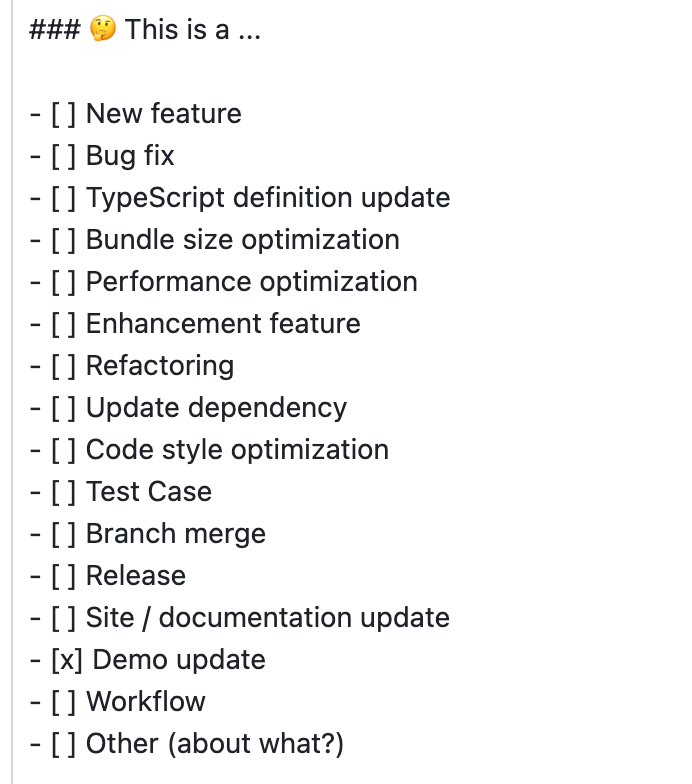
Fill in the changes of this submission according to the template:
- Check what type of change it is.
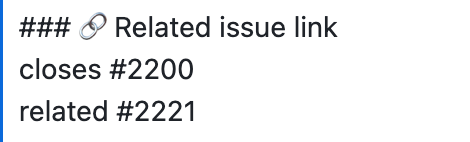
- Fill in the associated issue
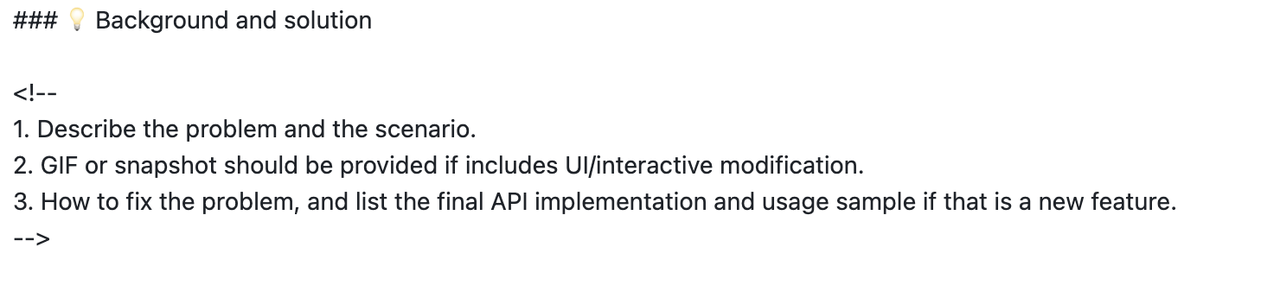
- For complex changes, please explain the background and solution.
After filling in the relevant information, click Create pull request to submit.
Activation status snapshot (2026-10-29): The supporting Bot and BugServer code is deployed. The legacy Photo CI handoff still awaits review and merge of this PR; new PR discovery and repository-scoped identities are not enabled. Maintainers will confirm the activation cutoff and the initial complete discovery snapshot when enabling the workflow. The scope below describes behavior after activation; merging this documentation does not activate it. Check maintainer updates in this repository's handoff PR for the latest activation status and times.
Automated code review and the PR workflow provide evidence and merge recommendations. Maintainers make the final approval and merge decisions manually.
The new workflow handles non-Draft PRs created after activation initialization and satisfying the configured creation-time cutoff, with both head and base branches in this repository and develop as the base branch. PRs targeting main, dev/*, or other branches are excluded from this workflow and retain the existing Photo CI trigger rules. An internal PR means a PR between branches of the same repository, regardless of the author's employment or organization membership.
A new Draft PR satisfying the creation-time conditions becomes eligible after it is marked Ready for review. Existing PRs are not backfilled by pushing commits, reopening them, or marking them ready. Fork PRs are not included in this workflow yet. Separately selected gray-validation PRs follow the scope announced by maintainers.
Automated CR and GitHub Actions have independent execution scopes. The absence of a new-workflow summary does not waive testing or human review.
Only administrators of the corresponding BugServer project may create BugServer cases. External contributors should provide reproduction material for an administrator to create the case and return its real caseId. CLI login or GitHub write access does not grant this permission. See the complete case workflow (Chinese).
Run the relevant unit tests and follow the local visual testing guide. The existing requirement to run the full visual suite before a PR still applies.
Describe test commands, results, expected visual changes, and unfinished checks in the PR. Explain why a test could not run. Self-comparison checks stability and does not replace comparison against the official baseline.
Read the Bot's Review, the GitHub unit-test run, and the workflow summary in the PR. Check the current commit and comparison baseline in the summary before applying its conclusions to your change.
| Check | Purpose and required action |
|---|---|
| CR | Read findings and referenced source locations, then push fixes. Closing a discussion alone does not prove a verified fix. |
| Unit tests | Use the CI run bound to the current version. Missing, skipped, running, or failed tests do not count as passed. |
| Playwright | Runs the full visual comparison and investigates differences. Review actual images and source; execution errors do not count as passed. |
| BugServer Photo | Runs automatically and preserves raw results for maintainers to inspect manually. It is currently report-only and does not block the aggregate recommendation from the three checks above. |
Photo differences, missing baselines, execution errors, and incomplete results remain visible. Completion of the three automatic checks does not mean Photo passed.
| Status (overview) | What to do |
|---|---|
| Pending / running | Wait for the current stage; a missing result is not a pass. |
| Changes or investigation needed | Read the findings, fix the issue, or provide evidence. |
| Blocked | Read the next action; contact maintainers for permissions, service issues, or task recovery. |
| Awaiting approval | Maintainers verify the three checks for the current version and manually inspect Photo. |
| Awaiting merge | The three checks are complete; inspect Photo and the saved selection, then merge manually. Approve is optional. |
| Completed | Workflow finalization is complete; original Photo differences and errors remain. |
| Superseded / closed without merge | Read the newer version, or treat the PR as unmerged. Neither status implies baseline updates. |
New commits or comparison-baseline changes cause the workflow to recheck the version and run the necessary checks. Older results remain historical evidence and cannot prove that a newer version passed. Verify the results and saved selection for each new commit.
GitHub Approve is an audit record in this workflow. Maintainers may merge manually after checking CR, unit tests, Playwright and Photo for the current commit. GitHub branch protection and repository review requirements still apply. The Bot does not change those rules, approve, or merge.
For PRs explicitly enabled for Photo selection, BugServer shows the current images and short explanations. New candidates are selected by default. Inspect each item, deselect any baseline that should stay unchanged, and save successfully before merging. The server's saved revision is authoritative; an unsaved draft has no effect. Default selection does not overwrite a saved manual choice.
After merge, only the selected baselines in that revision are updated. Unselected items stay unchanged. Writes still verify the frozen commit, three checks, merged content, save time and original baseline. Stale versions, post-merge selections and conflicts are not silently accepted. Ask maintainers to resume the original task after a timeout or partial success; do not dispatch another batch or change request IDs.
Photo remains report-only. An unavailable selection list, including more than 20 differences, incomplete explanations or execution errors, adds no merge gate and does not update baselines. PRs without this capability retain their existing mode. Baseline updates do not rewrite the original Photo report, and completed does not mean Photo passed.
Provide the PR URL, current commit SHA, relevant Review or CI links, and a publicly shareable error description when contacting maintainers. If you cannot access BugServer, ask a maintainer to inspect the internal report.
Do not repeatedly close/reopen PRs or create duplicate PRs to force reruns, and do not edit Bot-managed summaries or tracking markers. Do not paste credentials, internal report contents, or private runtime logs into public discussions.
"good first issue" is a common label in open source communities, and its purpose is to help new contributors find suitable entry-level issues.
For entry-level issues of VTable, you can view them through the issue list, which currently includes two types:
- Demo writing
- Bug fixes and simple feature development
If you currently have the time and willingness to participate in community contributions, you can look at good first issue in the issue and choose one that interests you and suits you.
I believe you must be a person who has a beginning and an end, so when you understand and decide to claim an issue, please leave a message under the issue to let everyone know.
We have prepared some common cases in practical application scenarios that require you to think about how to utilize the capabilities of VTable to achieve them. You can use these tasks to get started with using VTable. VTable provides rich capabilities, and everyone may have different implementation ideas. You can leave a comment under the issue and discuss your solution with others.
After completing the task, you can submit your created case to the official demo on the website, allowing more people in need to learn and use it. All demos are stored in the docs/assets/demo directory.
- Please base your development on the
developbranch and create a newdocs/***branch. - (Skip this step if you have already installed it) Globally install @microsoft/rush using
npm i --global @microsoft/rush - Run
rush updatefrom the root directory. - Run
rush docsto preview the current demo content locally. - Under the
docsdirectory: - Add your demo information to the
docs/assets/demo/menu.jsondirectory file. - Complete the Chinese and English demo documents in the
zh/endirectories, respectively. - For the cover address cover field, you can contact the VTable team members to assist with uploading.
- Commit all your code and create a Pull Request on Github, inviting others to review it.
Here are some simple and easy-to-get-started feature development tasks. If you have a certain foundation in JavaScript/TypeScript, you can claim these tasks.
You can learn the VTable code architecture more quickly by developing requirements. You can leave a message under the issue and discuss your solution with everyone.
- Please base your development on the develop branch and create a new
feat/***orfix/***branch. - (Skip this step if you have already installed it) Globally install @microsoft/rush:
npm i --global @microsoft/rush.
# install dependencies
$ rush update
# enter vtable package
$ cd packages/vtable
# execute in file path: ./packages/vtable
$ rushx demo
# start site development server, execute in file path: ./
$ rush docs
# after execut git commit, please run the following command to update the change log. Please execute in file path: ./
$ rush change-all
- Submit all code and create a Pull Request on Github, inviting others to review it.
A promotion task refers to the action of publicly releasing materials related to VisActor, such as articles, demos, videos, etc., across various media channels.
You can create a new issue, select the type others and tag it with promotion. Then, post it along with relevant links, screenshots, summaries, etc.
For example, see VisActor/VChart#2858.
Every quarter, we will select some promotional works for VisActor and provide the authors with material rewards.
In addition to contributing code to VisActor, we encourage you to participate in other activities that will make the community more prosperous, such as:
- Suggesting ideas for project development, functional planning, etc.
- Creating articles, videos, and holding lectures to promote VisActor.
- Writing promotion plans and executing them together with the team.
VisActor is also committed to helping students who participate in community building grow together. We plan (but are not limited to, and we look forward to more suggestions from everyone) to provide the following assistance:
- Data visualization research and development training based on VisActor to help participating students grow rapidly in programming skills, visualization theory, architecture design, and other aspects.
- Regularly select "Code Contribution Awards" and "Community Promotion Awards."
- Organize community members to participate in open source activities