Translate Markdown with AI, without breaking it.
MarkLingo turns the active saved Markdown file into a translated copy while preserving the parts that should not be touched: headings, lists, tables, code, inline code, HTML, frontmatter syntax, links, and image paths. It is built for writers, maintainers, and documentation teams who want fast multilingual Markdown drafts inside VS Code.
Translation runs through OpenRouter with your own API key, so you pick the model and pay only for what you use.
MarkLingo itself is free to use and fully open source: all source code is public on GitHub. You only pay OpenRouter/model usage directly, based on the model you choose.
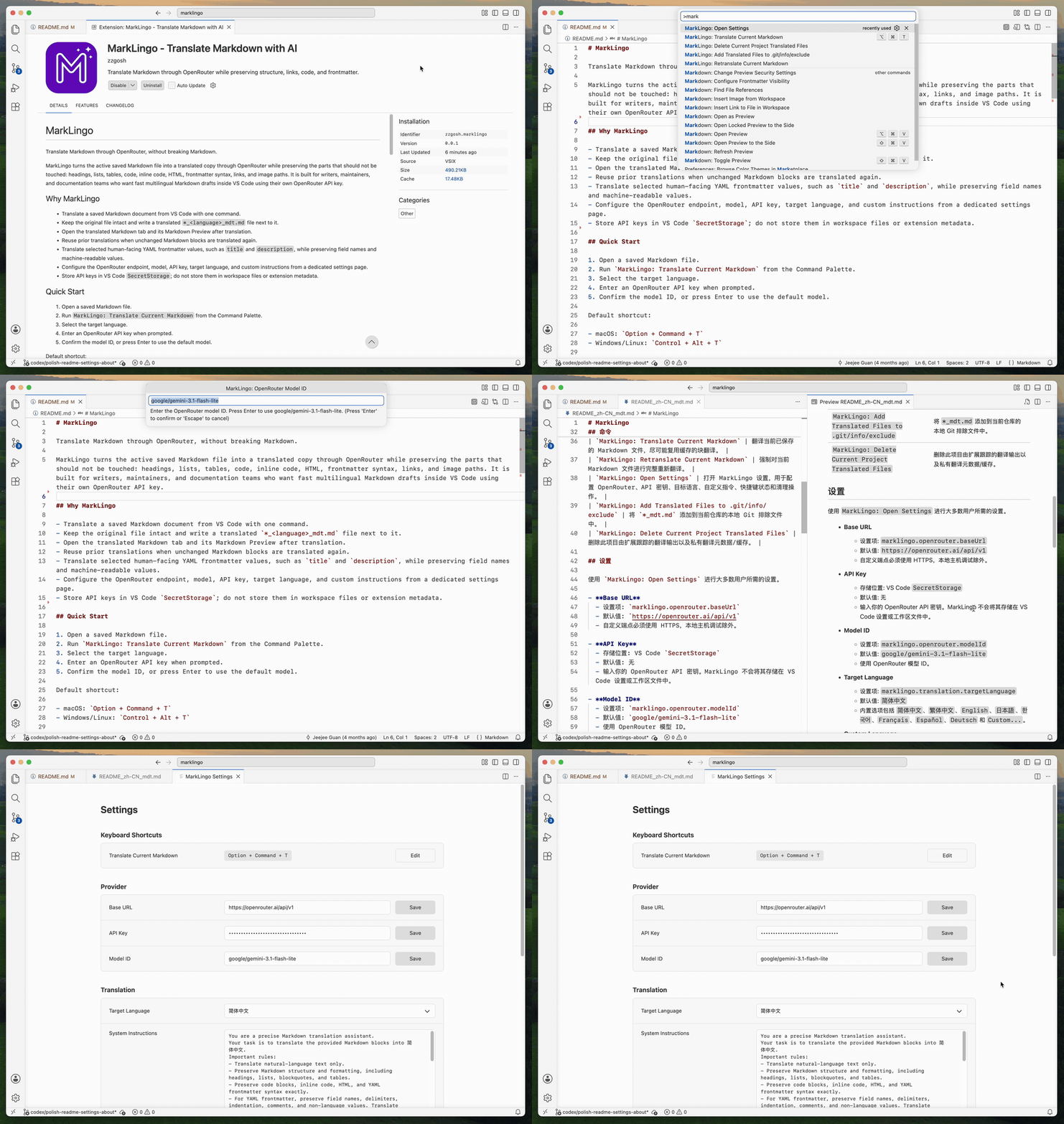
- Translate saved Markdown documents from the Command Palette, the editor context menu, or the Explorer context menu.
- Keep the original file intact and write a translated
*_<language>_mdt.mdfile next to it. - Open the translated Markdown tab and its Markdown Preview after translation.
- Reuse prior translations when unchanged Markdown blocks are translated again.
- Translate selected human-facing YAML frontmatter values, such as
titleanddescription, while preserving field names and machine-readable values. - Configure the OpenRouter endpoint, model, API key, target language, and custom instructions from a dedicated settings page.
- Use a transparent, fully open-source extension with no extension fee; the source code is public on GitHub.
- Store API keys in VS Code
SecretStorage; do not store them in workspace files or extension metadata.
Install MarkLingo from the VS Code Extensions view (search for MarkLingo) or from the Visual Studio Marketplace.
For VS Code-compatible editors that use Open VSX, install MarkLingo from the Open VSX Registry.
You can also install a packaged .vsix from the releases page.
First, get an OpenRouter API key: sign in at openrouter.ai/keys and create a key. Usage is billed by OpenRouter per request, based on the model you choose.
- Open a saved Markdown file.
- Run
MarkLingo: Translate Current Markdownfrom the Command Palette. - Select the target language.
- Paste your OpenRouter API key when prompted. It is stored in VS Code
SecretStorage, never in workspace files. - Confirm the model ID, or press Enter to use the default (
google/gemini-3.1-flash-lite).
Default shortcut:
- macOS:
Option + Command + T - Windows/Linux:
Control + Alt + T
You can also run MarkLingo: Open Settings first to save your API key, target language, model, and custom instructions before translating.
Right-click a Markdown editor to run MarkLingo: Translate Current Markdown. Right-click a Markdown file in the Explorer to run MarkLingo: Translate This Markdown File. Right-click a folder in the Explorer to run MarkLingo: Translate All Markdown in This Folder, which translates .md and .markdown files in that folder and its subfolders while skipping generated *_mdt.md outputs. You can also select multiple Markdown files or folders in the Explorer and run MarkLingo: Translate Selected Markdown Files to translate them as one batch.
| Command | What it does |
|---|---|
MarkLingo: Translate Current Markdown |
Translate the current saved Markdown file, reusing cached block translations when possible. |
MarkLingo: Retranslate Current Markdown |
Force a full retranslation of the current Markdown file. |
MarkLingo: Translate This Markdown File |
Translate the Markdown file selected from the Explorer context menu. |
MarkLingo: Translate Selected Markdown Files |
Translate Markdown files gathered from selected Explorer files and folders as one batch, opening the first translated output and writing the rest next to their sources. |
MarkLingo: Translate All Markdown in This Folder |
Translate source Markdown files in the selected folder and subfolders, opening the first translated output and writing the rest next to their sources. |
MarkLingo: Open Settings |
Open MarkLingo settings for OpenRouter, API key, target language, custom instructions, shortcut status, and cleanup. |
MarkLingo: Add Translated Files to .git/info/exclude |
Add *_mdt.md to the current repository's local Git exclude file. |
MarkLingo: Delete Current Project Translated Files |
Delete this project's extension-tracked translated outputs while keeping private translation metadata/cache. |
Use MarkLingo: Open Settings for the settings most users need.
-
Base URL
- Setting:
marklingo.openrouter.baseUrl - Default:
https://openrouter.ai/api/v1 - Custom endpoints must use HTTPS, except localhost debugging.
- Setting:
-
API Key
- Storage: VS Code
SecretStorage - Default: none
- Enter your OpenRouter API key. MarkLingo does not store it in VS Code settings or workspace files.
- Storage: VS Code
-
Model ID
- Setting:
marklingo.openrouter.modelId - Default:
google/gemini-3.1-flash-lite - Use an OpenRouter model ID.
- Setting:
-
Target Language
- Setting:
marklingo.translation.targetLanguage - Default:
简体中文 - Built-in options include
简体中文,繁体中文,English,日本語,한국어,Français,Español,Deutsch, andCustom....
- Setting:
-
Custom Language
- Setting:
marklingo.translation.targetLanguageCustom - Default: empty
- Used when target language is
Custom....
- Setting:
-
Custom Instructions
- Setting:
marklingo.translation.customPrompt - Default: empty
- Extra terminology, tone, or style instructions appended after MarkLingo's built-in Markdown-preservation prompt.
- Setting:
The settings page saves dropdown changes immediately. Free-text fields use their own inline Save buttons. API key actions and cleanup actions take effect immediately after confirmation.
MarkLingo always keeps the source Markdown file unchanged.
Translated output is written next to the source file:
README.md
README_zh-CN_mdt.md
Custom target languages use a safe suffix derived from the language name when possible, or a stable custom-<hash> suffix when needed.
Running translation again rebuilds the translated file from the current source Markdown and MarkLingo's private metadata/cache. Manual edits made directly in the translated output are not merged or preserved, so copy or rename the translated file first if you need to keep those edits.
MarkLingo is a local VS Code extension, but translation requires sending document content to OpenRouter, or to a trusted OpenRouter-compatible custom endpoint if you change the Base URL.
- Markdown content is sent to the configured endpoint for translation.
- The official OpenRouter endpoint is used by default.
- You need your own OpenRouter API key.
- Translation requests are non-streaming and request reasoning exclusion with
reasoning.exclude: trueandreasoning.effort: none. - API keys are stored in VS Code
SecretStorage. - API keys are not stored in workspace files, VS Code settings, translation metadata, or logs.
- Translation metadata is stored under VS Code
globalStorageUri, not in the workspace. - No telemetry SDK is included.
Changing marklingo.openrouter.baseUrl changes where future translation requests send the saved API key. Only use endpoints you trust.
Use MarkLingo: Open Settings and the Danger Zone to clear saved data.
Clear All Data can delete:
- Saved API key
- MarkLingo user settings
- Global translation metadata/cache
- Optionally, tracked translated workspace outputs
Clear Current Project Data can delete, for the shown project directory:
- Tracked translated project outputs
- Project translation metadata/cache
Use MarkLingo: Delete Current Project Translated Files when you only want to clean the current project's extension-tracked translated files. It intentionally deletes tracked outputs even if they were edited after generation.
npm install
npm run compile
npm test
npm run test:vscode
npm run dev:vscode
npm run package:dry
npm test runs fast Node unit tests. npm run test:vscode launches an isolated VS Code Extension Host with a temporary workspace, a local mock OpenRouter endpoint, and a fake SecretStorage API key. It does not use your installed VSIX settings or real OpenRouter key.
Use npm run dev:vscode for manual smoke testing of the current working tree. It builds the extension, then opens a separate VS Code window with --extensionDevelopmentPath, an isolated user data directory named marklingo-dev-user in the system temp directory, and an isolated extensions directory named marklingo-dev-extensions in the system temp directory. This keeps your regular VS Code profile and installed Marketplace version untouched. Because the extension is loaded from the development path instead of installed as a VSIX, the isolated Extensions view may still show Installed 0; that is expected. Verify the loaded development extension from the Command Palette with MarkLingo: Open Settings, or use Developer: Show Running Extensions. Configure the API key again inside that isolated window when testing real translation requests. Override MARKLINGO_DEV_USER_DATA_DIR or MARKLINGO_DEV_EXTENSIONS_DIR to choose fixed directories.
Package a local VSIX:
npm run vsixMarkLingo is authored as native ESM TypeScript. Source lives in src/, compiled output goes to out/, and the published extension entrypoint is the bundled dist/extension.js.